

NMEA 2000 troubleshooting
NMEA 2000 Device Not Showing Up? How to Troubleshoot the Network
By New Wire Marine Technical Team Published October 7, 2026
The device turns on, but your display can’t find it. Or the device appears on the network and the information you expected still isn’t there.
Start by checking whether the display can see the device at all. If it can’t, work through the physical network: the backbone, power, connections, and terminators. If the device is listed but its data is missing, look at source selection, supported data, configuration, software, and compatibility.
The goal is to work out which problem you have before replacing electronics or ordering parts that won’t fix it.
Step 1
Sketch the physical backbone
The backbone is the main network run. Tees sit along that run, and an individual drop cable connects each device to a tee. Under Garmin’s published guidance, a standard linear backbone has a terminator at each physical end.
Draw the backbone, then mark every tee, drop, power connection, and terminator. That simple sketch can make a misplaced terminator, an unexpected branch, or a device wired outside the usual drop layout much easier to spot. Garmin’s guidance limits an individual drop to 6 m (20 ft), but check the instructions for the components in your network before applying that limit to your installation.
T
Device drop
T
Device drop
T
Protected 12V feed
T
Device drop
Terminator
Terminator
Simplified example: This shows the relationship among the backbone, tees, drops, power connection, and end terminators. It is not a complete installation plan. Some devices also require their own operating power.
Step 2
Check network power and circuit protection
Find the NMEA 2000 network-power connection rather than relying on the power cable for the device you’re troubleshooting. Confirm that its positive and negative connections are secure and that the specified fuse or breaker is intact.
If the network has more than one possible power source, or you cannot tell how it is powered, stop and check the installation documentation. Adding another power cable without understanding the existing design can create a second problem.
Step 3
Inspect the terminators, tees, drops, and connectors
- Confirm that the backbone has the termination arrangement specified for the installed system.
- Check that the device connects through a tee and an appropriate drop cable.
- Make sure threaded connectors are fully seated without being forced.
- Look for bent pins, corrosion, water intrusion, damaged threads, cuts, and crushed cable jackets.
- Reseat one connection at a time so you know which change affected the result.
Know the parts
What each network component does
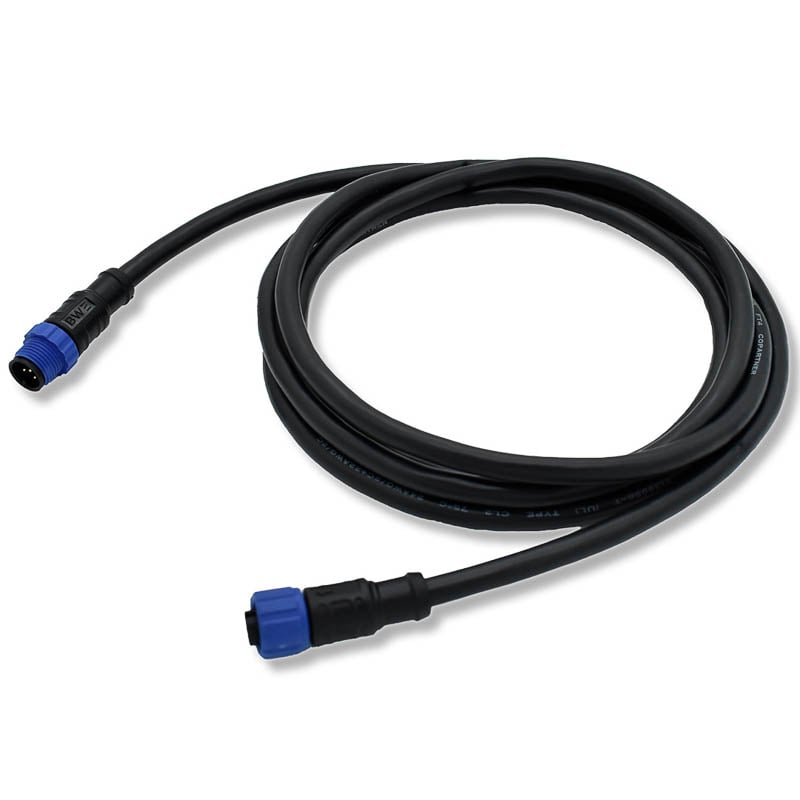
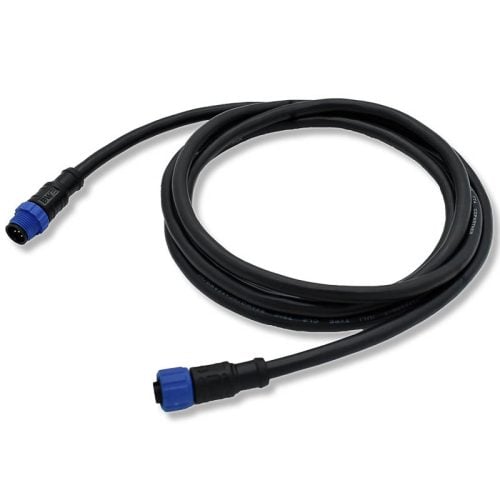
Drop or network cable
Connects a device to a tee or extends an approved backbone layout. Its permitted use depends on its length and the network design.
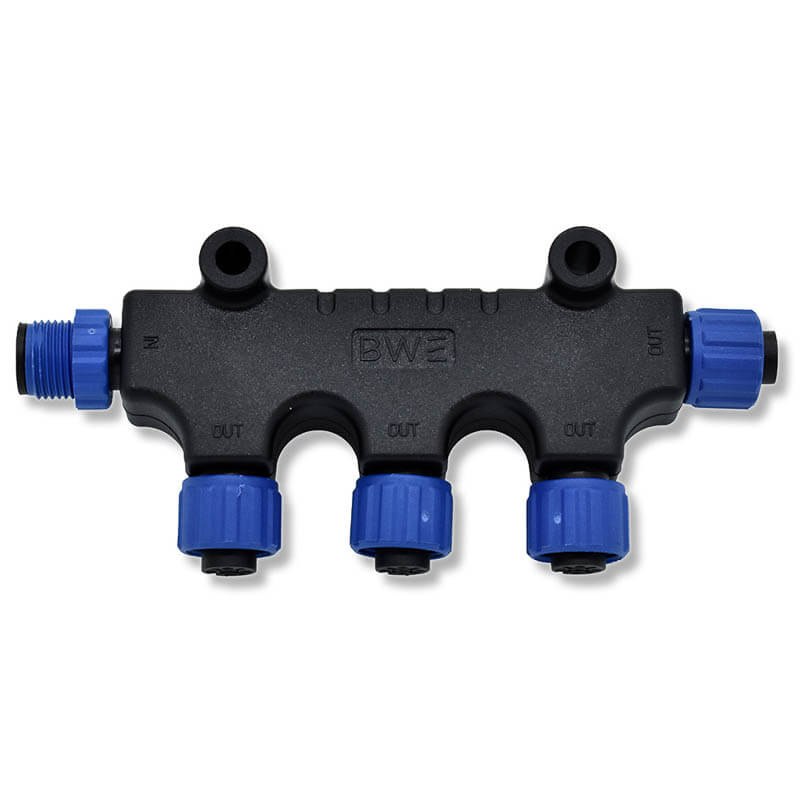
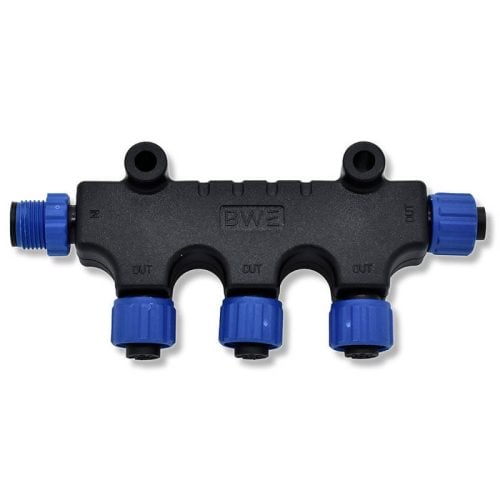
Tee connector
Adds connection points along the backbone for device drops or the network-power connection.
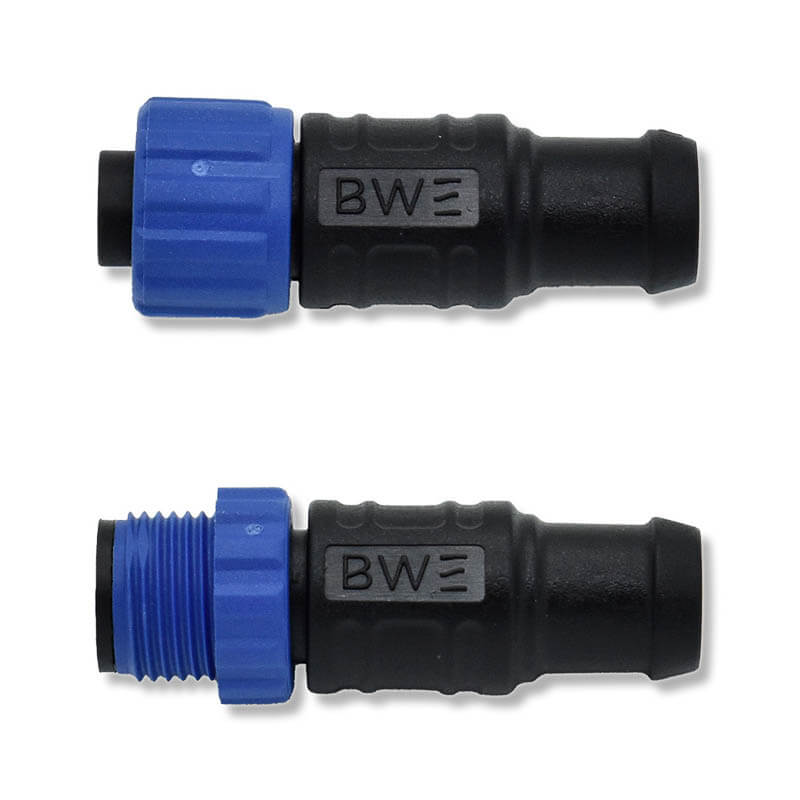
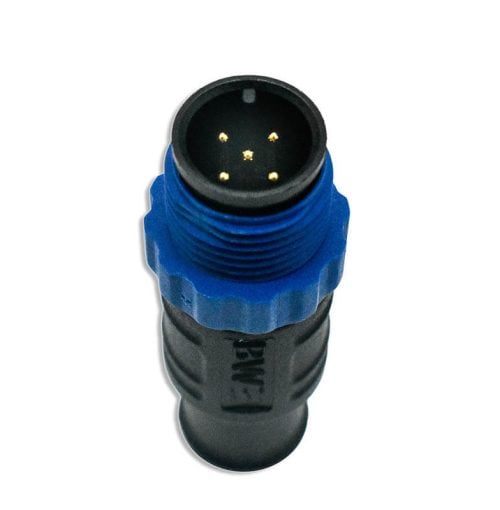
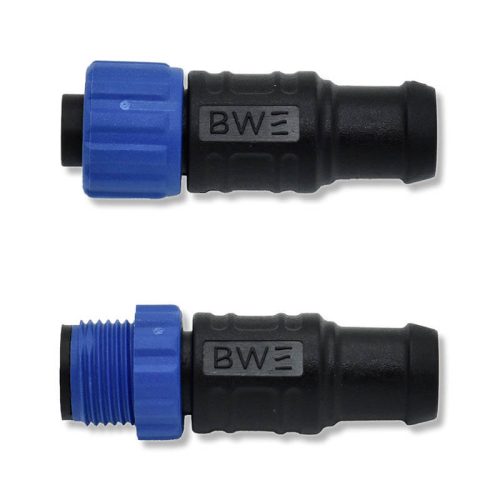
Male and female terminators
Close the two physical ends of a standard linear backbone. Unused device drops do not each receive another terminator.
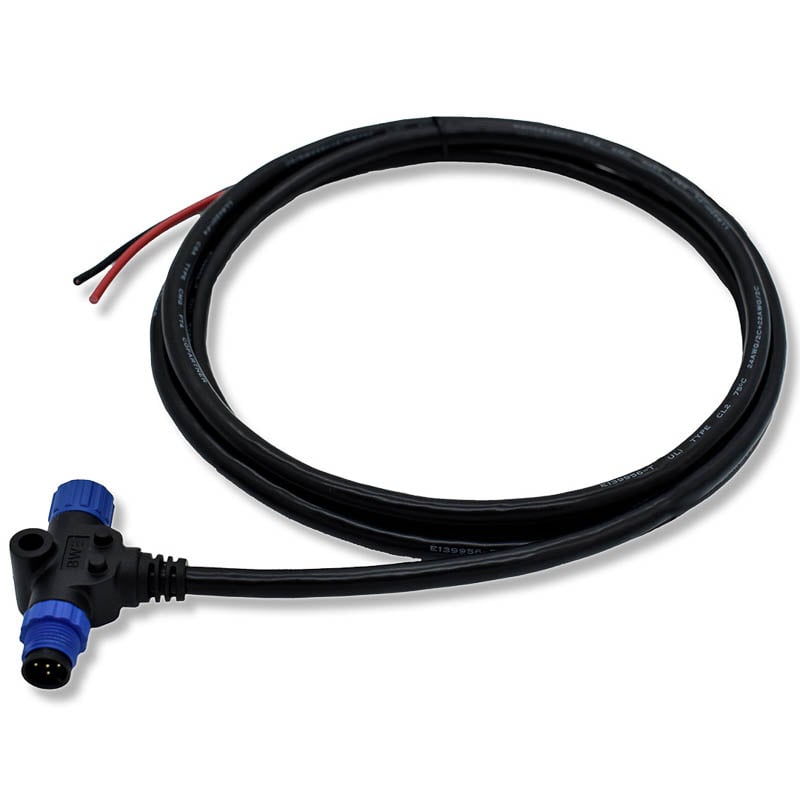
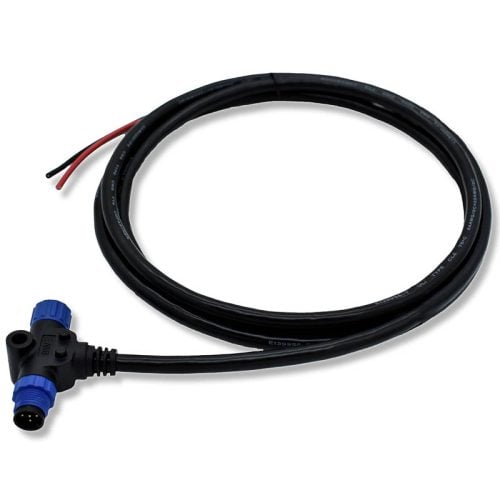
Network power cable
Supplies protected power to the backbone. It is separate from any operating-power connection used by a display or other device.
Bluewater Enterprises components supplied for New Wire Marine product use. Component selection and network layout must follow the instructions for the equipment installed on the boat.
Step 4
If the device appears, check the data path
A matching Micro-C connector tells you the parts can physically connect. It does not confirm that the source sends the information you want or that the receiving display knows how to use it.
- Confirm that the source device transmits the required NMEA 2000 data.
- Confirm that the receiving display supports and can show that data.
- Check which source the display selected when more than one device supplies similar information.
- Check the software and configuration instructions for both devices.
- Confirm whether the installation requires a manufacturer-approved gateway, adapter, or interface.
Use the documentation for the exact manufacturer and model. A cable, tee, or terminator cannot replace a required gateway or make incompatible equipment exchange unsupported data.
What did you find?
Here’s where to look next
The device isn’t on the list
Stay with the physical connection for now. Follow that device’s drop cable back to its tee, check both connectors, and make sure the backbone has power and is laid out correctly.
The device is there, but the data isn’t
The network connection is probably not the first place to look. Check whether the device sends that information, whether the display can use it, and which source the display selected.
The device list is empty
Go straight to the network-power feed, its fuse or breaker, and the main backbone connections. If the whole network is missing, start with what the devices share.
The device keeps dropping off
Look for something intermittent: a loose connector, damaged cable, moisture, corrosion, or network power that cuts in and out. Change one thing at a time so you know what made the difference.
Before you go further
Check the documentation for your equipment
These references are a small representative sample, not universal instructions. Menu names, supported data, power requirements, and troubleshooting steps vary by manufacturer and model. Use the installation manual and support documentation for each device on your boat as the primary source of truth.
Garmin Technical Reference for NMEA 2000 Products
A manufacturer reference covering example network layout, power, cables, and termination.
Raymarine NMEA 2000 diagnostics
A manufacturer-specific example of a connected-device list and message diagnostics.
NMEA 2000 standards overview
An overview from the organization responsible for the NMEA 2000 standard.
Actisense network-testing guide
A more technical reference for readers who need to understand further testing.
Products for this project
Found a bad part? Match the replacement to the network
These are the parts you’re most likely to need after finding a physical network problem. They won’t fix missing data, software, source selection, or incompatible equipment.
Frequently asked questions
Can an NMEA 2000 device turn on without appearing on the network?
Yes. Some equipment has a separate operating-power connection. The device may turn on even when the NMEA 2000 backbone is unpowered or its network connection is not working.
Why does the display see the device but not its data?
The display may be using a different source, the sending device may not transmit that information, or the display may not support it. Configuration, software, and equipment-specific interface requirements can also matter.
How many terminators belong on a basic NMEA 2000 backbone?
Garmin’s published guidance shows one terminator at each physical end of a correctly constructed linear backbone and warns against installing more than two. Confirm the required arrangement in the documentation for the network components installed on your boat.
Does every unused tee need a terminator?
No. End terminators close the two physical ends of the backbone. An unused device-drop connection does not become another end of the backbone simply because nothing is plugged into it.
When should I contact the manufacturer or an installer?
Stop when the network design is uncertain, the wiring is damaged or overheated, proprietary or engine wiring is unidentified, or the equipment requires diagnostics or configuration beyond its published owner instructions.
Related educational resources
NMEA 2000 network components
See the cable, power, tee, and termination parts New Wire Marine currently carries after you have identified what the network needs.
Garmin sample NMEA 2000 network
Compare the simplified diagram above with a manufacturer’s labeled example, then return to the documentation for your own equipment.